Module 1 · Why GPUs on Kubernetes are hard
Goal: by the end of this module you can draw the GPU stack from the silicon up to your pod spec, and say which layer each thing you'll install in Lab 1 lives in.
The gap
Kubernetes was designed for resources that are fungible and divisible: CPU time can be sliced into millicores, memory into bytes, and the scheduler can pack, preempt and move things around without the workload noticing.
GPUs are none of those things. A GPU is
- expensive — a
g5.xlargecosts five to ten times what a general-purpose node with the same vCPU count costs, and ap5.48xlargeruns about $100 an hour On-Demand; - stateful — model weights are loaded into GPU memory over minutes, not milliseconds. Killing a pod to reschedule it is not free;
- driver-bound — the container, the host kernel module, and the CUDA runtime in your image all have to agree on versions. A mismatch is a crash, not a warning;
- indivisible by default — Kubernetes hands out whole devices. There is no
nvidia.com/gpu: 0.5.
Everything in this workshop is a technique for living with those four facts.
The stack, bottom-up
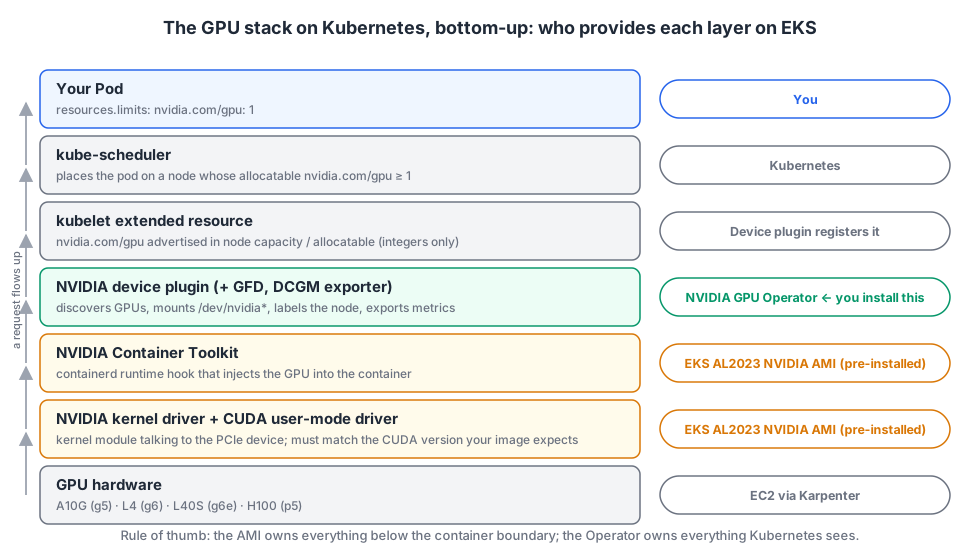
Read it from the bottom:
- Hardware. An EC2 instance with one or more NVIDIA GPUs on the PCIe bus. Karpenter will pick these for us.
- Kernel driver + CUDA user-mode driver. The kernel module that talks to the device, plus
libcuda.so. The driver version determines which CUDA runtime versions your containers can use (newer drivers run older CUDA; not the other way round). - NVIDIA Container Toolkit. A containerd runtime hook. When a container starts with the right environment (
NVIDIA_VISIBLE_DEVICES), it bind-mounts/dev/nvidia*and the driver libraries into the container. Without it, your container sees no GPU no matter what Kubernetes promised it. - NVIDIA device plugin. A DaemonSet that talks to kubelet's device-plugin API: "this node has 1 GPU". Kubelet then advertises
nvidia.com/gpu: 1as an extended resource in the node's capacity and allocatable, and setsNVIDIA_VISIBLE_DEVICESon containers that requested it. Its friends: GPU Feature Discovery (labels the node withnvidia.com/gpu.product,.memory,.count…) and DCGM exporter (Prometheus metrics). - kube-scheduler. Sees
nvidia.com/gpulike any other resource and places your pod on a node with enough allocatable. - Your pod.
resources.limits: {nvidia.com/gpu: 1}.
The NVIDIA GPU Operator is a Kubernetes operator that manages layers 2–4 as DaemonSets. On a bare Ubuntu node it installs the driver and the toolkit too. On EKS, as you'll see, you turn those two off.
What nvidia.com/gpu: 1 actually does
Three rules, straight from the Kubernetes extended-resources contract:
- Integers only.
0.5and500mare rejected by the API server. - Requests must equal limits. Extended resources cannot be overcommitted. Specifying only
limitsis the idiom — Kubernetes copies it torequests. - No sharing — a GPU counted as
1is handed to exactly one container. Sharing (Module 3) works by making the device plugin lie and advertise more than one.
The scheduler only knows the number. It does not know GPU memory, model, or utilisation. That's why node labels from GPU Feature Discovery matter: nodeSelector: {nvidia.com/gpu.product: NVIDIA-A10G} is how you say "I need 24 GB".
Where EKS helps (and where it doesn't)
| Layer | Generic Kubernetes | Amazon EKS (AL2023 NVIDIA AMI) | EKS Auto Mode |
|---|---|---|---|
| Driver | you install | in the AMI | in the AMI |
| Container toolkit | you install | in the AMI, nvidia is containerd's default runtime |
in the AMI |
| Device plugin | you install | you install (GPU Operator or plain device-plugin chart) | AWS-managed, invisible |
| Node provisioning | Cluster Autoscaler / Karpenter | Karpenter (you install) | Karpenter (AWS-managed) |
| Time-slicing / MIG config | you configure | you configure via the Operator | limited |
The EKS-optimised AL2023 NVIDIA AMI ships the driver, the CUDA user-mode driver, the container toolkit and even the fabric manager for multi-GPU instances. What it does not ship is the device plugin — AWS says so explicitly. You'll install that as part of the GPU Operator in Lab 1, with driver.enabled=false and toolkit.enabled=false.
EKS Auto Mode goes further and manages the device plugin for you. It's a great default for teams that don't want to own this layer. We're deliberately not using it today, because you can't learn what a layer does by having it hidden — and because the sharing configuration we do in Module 3 is something you own on standard EKS.
Live demo: a CPU node vs a GPU node
The presenter's cluster already has a GPU node. On yours there is none yet, which is also part of the demo. Run this on your cluster:
kubectl get nodes -o custom-columns='NAME:.metadata.name,INSTANCE:.metadata.labels.node\.kubernetes\.io/instance-type,GPU:.status.allocatable.nvidia\.com/gpu,PRODUCT:.metadata.labels.nvidia\.com/gpu\.product'
And this is what the presenter's GPU node shows for the same command, plus a describe:
Note where nvidia.com/gpu: 1 sits: right next to cpu and memory, as a peer. Kubernetes doesn't know it's special. Everything that makes it special lives in the DaemonSets you'll install next.
Questions that always come up
Does this work with AMD GPUs / ROCm?
The pattern is identical — AMD ships its own device plugin and GPU Operator — but the AMIs, labels and metrics are different, and EC2's AMD-GPU instance families are narrower. Everything in this workshop is NVIDIA-specific in the details.
Windows nodes?
No. Not for GPU inference, not today.
Can I request half a GPU?
Not with nvidia.com/gpu. Module 3 shows the three ways to share a GPU (time-slicing, MIG, MPS) and why each exists.
What about Dynamic Resource Allocation (DRA)?
DRA is the successor to device plugins: pods claim devices through ResourceClaim objects with structured parameters, and the scheduler can reason about GPU attributes instead of a bare integer. It went GA in Kubernetes 1.34. AWS now recommends the NVIDIA DRA driver for static GPU capacity on 1.34+, and still recommends the device plugin with Karpenter (dynamic capacity) — which is us. We use the device plugin today and point you at DRA in the wrap-up.